Exterior Lighting System
LIGHTING (EXT): LIGHTING SYSTEM: CUSTOMIZE PARAMETERS
1. CUSTOMIZE LIGHTING SYSTEM (EXT)
HINT
The following items can be customized.
NOTICE:
* When the customer requests a change in a function, first make sure that the function can be customized.
* Be sure to make a note of the current settings before customizing.
* When troubleshooting a function, first make sure that the function is set to the default setting.
(a) Customizing with the Techstream
(1) Connect the Techstream to the DLC3.
(2) Turn the power switch on (IG).
(3) Turn the Techstream on.
(4) Enter the following menus: Body Electrical / Main Body / Utility / Customize / Light Control.
(5) Select the setting by referring to the table below.
Light Control
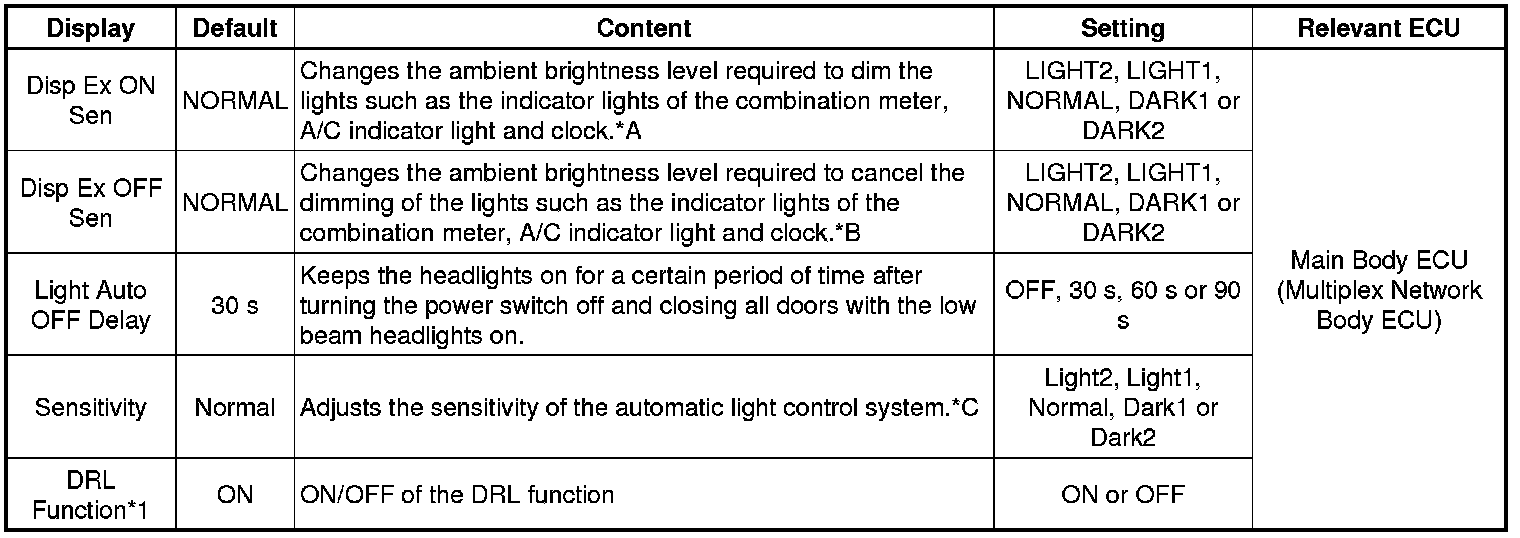
* *1: except Canada
HINT
The sensitivity adjustment may be difficult to confirm. Check by driving the customer's vehicle.
*A

*B

*C

(b) Customizing with the multi-display (w/ Navigation System (for Navigation Receiver Type))
(1) Turn the power switch on (IG).
(2) Enter the following menus: SETUP / Vehicle / Vehicle Customization / Light Settings.
(3) Select the setting by referring to the table below.
Light Settings
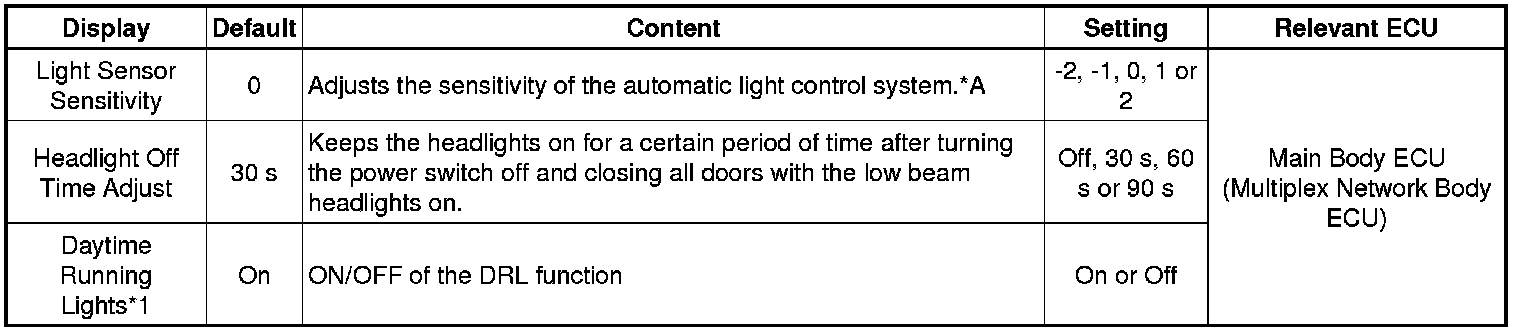
* *1: except Canada
HINT
The sensitivity adjustment may be difficult to confirm. Check by driving the customer's vehicle.
*A

(c) Customizing with the multi-display (w/ Navigation System (for Radio and Display Type))
(1) Turn the power switch on (IG).
(2) Enter the following menus: SETUP / Vehicle.
(3) Select the setting by referring to the table below.
Vehicle Settings
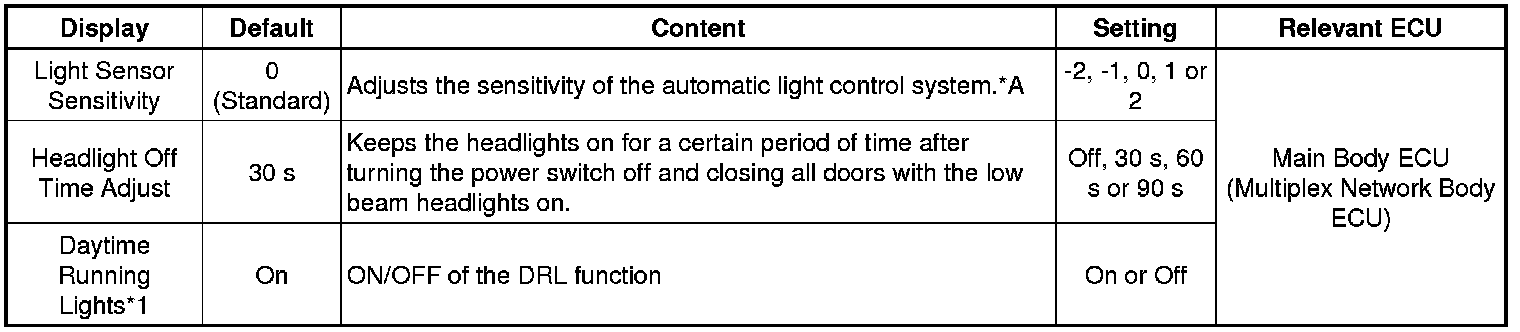
* *1: except Canada
HINT
The sensitivity adjustment may be difficult to confirm. Check by driving the customer's vehicle.
*A
